Expo Push Notifications: Your First Push, and Why It Didn't Arrive
Development builds, FCM and APNs credentials, push tokens, test sends and the fixes for missing notifications
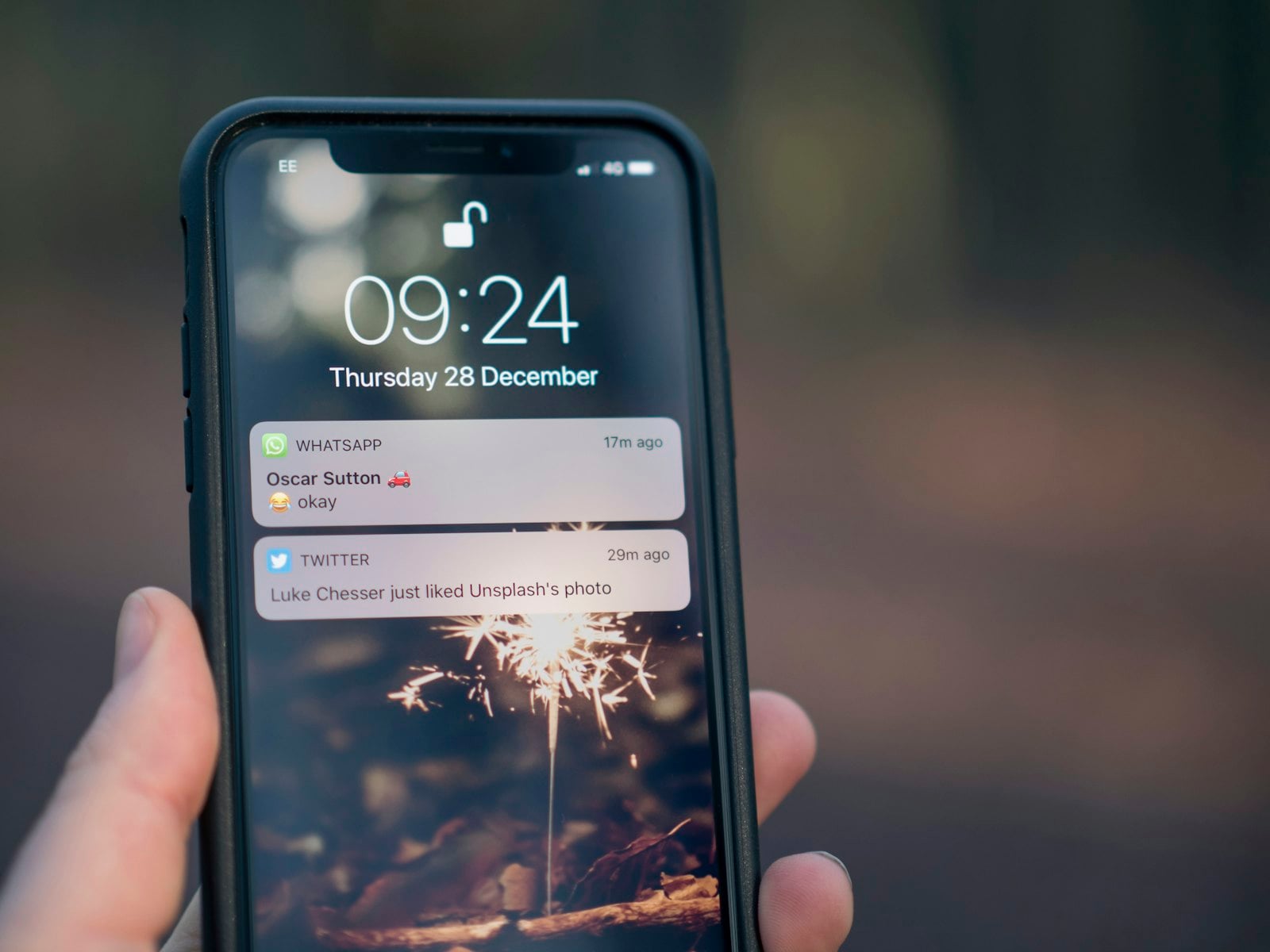
Push notifications are one of the first "real app" features people add to an Expo project, and one of the most common places to lose an afternoon. The code is short. The setup around it (builds, credentials, tokens, permissions) is where things quietly go wrong.
This guide walks through getting your first push notification onto a device with expo-notifications, then covers the reasons a push never arrives.
Do push notifications work in Expo Go?
Expo's notifications docs say push functionality is unavailable in Expo Go on Android from SDK 53. Local notifications still work there, but for remote push you need a development build of your app.
So the plan is:
Install the libraries
Set up credentials and make a development build
Ask for permission and get a push token
Send a test push
Handle taps
Push works on physical devices, Android emulators with Google Play services, and iOS simulators on Xcode 14 or later (macOS 13+, iOS 16+), according to the same docs.
Step 1: Install the libraries
npx expo install expo-notifications expo-constants
expo-constants is used to read your EAS projectId, which the push token needs.
Step 2: Credentials and a development build
Expo's push service delivers through Google's and Apple's services, so each platform needs credentials:
| Platform | What you need | How |
|---|---|---|
| Android | Firebase Cloud Messaging (FCM) V1 credentials | Follow Expo's "Add Android FCM V1 credentials" guide and upload them to EAS |
| iOS | A paid Apple Developer account and an Apple Push Notifications service (APNs) key | Answer yes when the EAS CLI asks to set up push notifications during eas build, or run eas credentials |
Then build and install a development build:
eas build --profile development --platform android
eas build --profile development --platform ios
On iOS, register your test device before the first build so the build can be installed on it.
Step 3: Ask permission and get the push token
This is the core function. It creates the Android channel, asks for permission, and returns an Expo push token:
import * as Notifications from 'expo-notifications';
import Constants from 'expo-constants';
import { Platform } from 'react-native';

export async function registerForPushNotifications(): Promise<string | null> {
  if (Platform.OS === 'android') {
    await Notifications.setNotificationChannelAsync('default', {
      name: 'default',
      importance: Notifications.AndroidImportance.MAX,
    });
  }

  const { status: existing } = await Notifications.getPermissionsAsync();
  let status = existing;
  if (existing !== 'granted') {
    ({ status } = await Notifications.requestPermissionsAsync());
  }
  if (status !== 'granted') return null;

  const projectId =
    Constants?.expoConfig?.extra?.eas?.projectId ??
    Constants?.easConfig?.projectId;
  if (!projectId) throw new Error('Missing EAS projectId');

  const { data } = await Notifications.getExpoPushTokenAsync({ projectId });
  return data; // "ExponentPushToken[...]"
}
A few details that matter:
Create the Android channel before asking for permission. On Android 13+, the permission prompt appears only once at least one notification channel exists.
Pass
projectIdexplicitly. Expo recommends it so the token is tied to your project, even if the project moves between accounts.Save the token on your server, linked to the signed-in user. You can't send a push without it.
Then decide how notifications appear while the app is open:
Notifications.setNotificationHandler({
  handleNotification: async () => ({
    shouldShowBanner: true,
    shouldShowList: true,
    shouldPlaySound: false,
    shouldSetBadge: false,
  }),
});
Without a handler, notifications that arrive while the app is in the foreground are not shown.
Step 4: Send your first push
The quickest test is Expo's push notifications tool: paste the ExponentPushToken[...], add a title and body, and send.
From your own backend, it is one HTTP request to Expo's push API:
curl -X POST https://exp.host/--/api/v2/push/send \
  -H "Accept: application/json" \
  -H "Content-Type: application/json" \
  -d '{
    "to": "ExponentPushToken[xxxxxxxxxxxxxxxxxxxxxx]",
    "title": "Your order shipped",
    "body": "Tap to track it",
    "data": { "url": "myapp://orders/42" }
  }'
The response contains a ticket for each message. A ticket with "status": "ok" means Expo accepted the message, not that it reached the phone. Expo's push service also provides receipts you can fetch later with the ticket IDs; that is where delivery errors such as DeviceNotRegistered show up.
Step 5: Handle taps
Most pushes should open a specific screen. Put a URL in data and route on tap:
import { useEffect } from 'react';
import { Linking } from 'react-native';
import * as Notifications from 'expo-notifications';

export function useNotificationTaps() {
  useEffect(() => {
    const sub = Notifications.addNotificationResponseReceivedListener(
      (response) => {
        const url = response.notification.request.content.data?.url;
        if (typeof url === 'string') Linking.openURL(url);
      }
    );
    return () => sub.remove();
  }, []);
}
With Expo Router, a URL like myapp://orders/42 maps straight to app/orders/[id].tsx, so the tap lands on the right screen.
Why didn't my Expo push notification arrive?
Work through these in order:
| Symptom | Likely cause |
|---|---|
| Nothing on Android in Expo Go | Remote push isn't available in Expo Go on Android (SDK 53+). Use a development build. |
| No permission prompt on Android | No notification channel created before requesting permission. |
getExpoPushTokenAsync throws |
Missing projectId, or no credentials for that platform. |
Ticket is ok but nothing shows |
Check the receipt. Also check the app's notification settings on the device. |
| Works when closed, not when open | No setNotificationHandler, so foreground notifications are hidden. |
DeviceNotRegistered in receipts |
The app was uninstalled or the token is stale. Stop sending to it and remove it from your database. |
| Android fails, iOS works | FCM V1 credentials missing or uploaded to the wrong project. |
Where this fits in a real app
Push is usually one of the last features wired up, after auth and the screens a notification should open. If you are building those screens quickly, RapidNative generates a standard Expo project (Expo Router, TypeScript, NativeWind) from a plain-English description, so you can export it and add expo-notifications exactly as above.
Wrapping up
The code for Expo push is about 40 lines. Most of the work is the setup around it: a development build, the right credentials per platform, a channel before the permission prompt, an explicit projectId, and checking receipts instead of trusting tickets.
What tripped you up the first time you set up push in Expo: credentials, tokens, or notifications that arrived but never showed?
Comments
Join the discussionNo comments yet. Be the first to comment.
Shipping Expo Apps to Production
Practical, production-focused guides for React Native and Expo developers: OTA updates, EAS builds, push notifications, auth and payments. What to set up, what breaks, and how to ship with confidence.